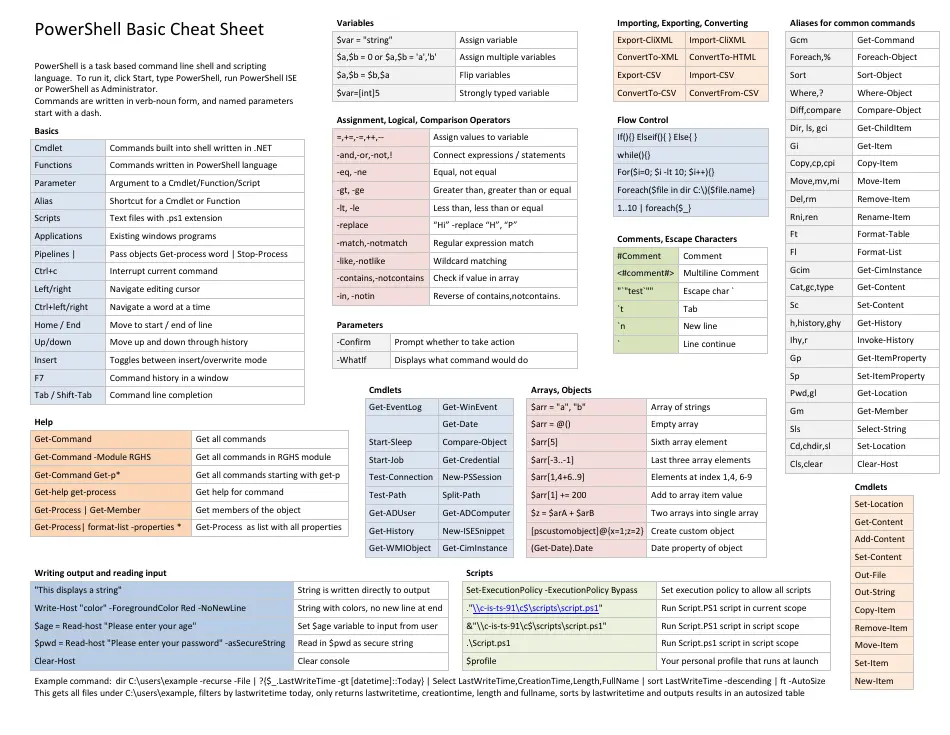
PowerShell is a command-line shell and scripting language built into Windows. It’s useful for managing files, processes, services, users, networking, and system configuration.
If you’re new to PowerShell, you don’t need to memorize hundreds of commands. Start with the commands below and learn what each one does.
1. Get-Help
Get-Help is one of the most important commands for beginners. It lets you learn how PowerShell commands work without leaving the terminal.
Get-Help Get-Process
For more detailed information:
Get-Help Get-Process -Detailed
To see examples:
Get-Help Get-Process -Examples
If you don’t know how to use a command, try Get-Help first.
2. Get-Command
Get-Command helps you find commands available in PowerShell.
Get-Command
You can search for commands related to a particular task:
Get-Command *process*
Or search for commands that start with Get:
Get-Command Get-*
This is particularly useful when you know what you want to do but don’t know the exact command.
3. Get-Location
Get-Location shows your current working directory.
Get-Location
Example output:
Path
----
C:UsersAdmin
The PowerShell equivalent of the traditional pwd command is also available as an alias:
pwd
4. Set-Location
Set-Location lets you move to another directory.
Set-Location C:UsersAdminDocuments
You can also use the shorter alias:
cd C:UsersAdminDocuments
To move up one directory:
cd ..
To move to the root of the current drive:
cd
5. Get-ChildItem
Get-ChildItem lists files and folders in the current directory.
Get-ChildItem
The common aliases are:
dir
and:
ls
To see files inside a specific directory:
Get-ChildItem C:UsersAdminDocuments
To include hidden items:
Get-ChildItem -Force
6. New-Item
New-Item creates files and directories.
Create a folder:
New-Item -ItemType Directory -Name Projects
Create a file:
New-Item -ItemType File -Name notes.txt
You can also specify a complete path:
New-Item -ItemType Directory -Path C:Projects
7. Copy-Item
Use Copy-Item to copy files or folders.
Copy a file:
Copy-Item notes.txt C:Backup
Copy a folder and its contents:
Copy-Item C:Projects C:Backup -Recurse
The -Recurse parameter is important when you’re copying directories containing files and subdirectories.
8. Move-Item
Move-Item moves files and folders.
Move-Item notes.txt C:Documents
You can also rename a file with Move-Item:
Move-Item oldname.txt newname.txt
9. Rename-Item
Rename-Item is specifically designed for renaming files and directories.
Rename-Item notes.txt notes-old.txt
For a folder:
Rename-Item Projects Projects-2026
10. Remove-Item
Remove-Item deletes files and directories.
Delete a file:
Remove-Item notes.txt
Delete a folder:
Remove-Item Projects
To delete a folder and everything inside it:
Remove-Item Projects -Recurse
Be careful with Remove-Item. PowerShell can permanently delete items without sending them to the Recycle Bin.
11. Get-Content
Get-Content reads the contents of a text file.
Get-Content notes.txt
You can also read a file using its full path:
Get-Content C:Logsapplication.log
This is useful for quickly checking configuration files and log files.
12. Set-Content
Set-Content writes content to a file.
Set-Content notes.txt "PowerShell is useful."
If the file already contains text, Set-Content replaces it.
For example:
Set-Content notes.txt "First line"
13. Add-Content
Add-Content adds text to an existing file without replacing its existing contents.
Add-Content notes.txt "Second line"
This is useful for simple logging.
Example:
Add-Content application.log "Application started"
14. Get-Process
Get-Process displays running processes.
Get-Process
To find a specific process:
Get-Process chrome
You can also search using Where-Object:
Get-Process | Where-Object CPU -gt 100
15. Stop-Process
Stop-Process stops a running process.
Stop-Process -Name notepad
You can also specify a process ID:
Stop-Process -Id 1234
Use this carefully, especially when working with system processes.
16. Get-Service
Get-Service shows Windows services.
Get-Service
To check a particular service:
Get-Service -Name Spooler
To find services that aren’t running:
Get-Service | Where-Object Status -ne Running
17. Start-Service
Start-Service starts a Windows service.
Start-Service -Name Spooler
You may need to run PowerShell as Administrator depending on the service and your system permissions.
18. Stop-Service
Stop-Service stops a Windows service.
Stop-Service -Name Spooler
Don’t stop services simply because you don’t recognize them. Some services are required by Windows or installed applications.
19. Restart-Service
Instead of stopping and starting a service manually, you can restart it:
Restart-Service -Name Spooler
This is commonly useful when troubleshooting Windows services.
20. Get-ComputerInfo
Get-ComputerInfo displays detailed information about the computer.
Get-ComputerInfo
This can return information about Windows, the operating system, hardware, BIOS, and other system details.
For a specific property:
Get-ComputerInfo | Select-Object WindowsProductName, WindowsVersion
21. Get-Member
PowerShell commands often return objects rather than plain text. Get-Member helps you understand what properties and methods those objects have.
Get-Process | Get-Member
For example, you might discover properties such as:
Name
Id
CPU
Path
Understanding objects is one of the biggest differences between PowerShell and traditional command-line tools.
22. Select-Object
Select-Object lets you choose specific properties from an object.
Instead of displaying everything about a process:
Get-Process
you can select only the name and ID:
Get-Process | Select-Object Name, Id
You can also select the first few results:
Get-Process | Select-Object -First 5
23. Where-Object
Where-Object filters objects based on a condition.
Find running services:
Get-Service | Where-Object Status -eq "Running"
Find stopped services:
Get-Service | Where-Object Status -eq "Stopped"
Find processes using more than 100 MB of working memory:
Get-Process | Where-Object WorkingSet64 -gt 100MB
The pipeline makes this especially powerful:
Get-Process | Where-Object CPU -gt 100 | Select-Object Name, CPU
24. Sort-Object
Sort-Object sorts results.
For example, sort processes by CPU usage:
Get-Process | Sort-Object CPU -Descending
Sort files by size:
Get-ChildItem | Sort-Object Length -Descending
You can sort by multiple properties as well.
25. Measure-Object
Measure-Object can count, measure, and calculate statistics.
Count files:
Get-ChildItem | Measure-Object
Count files recursively:
Get-ChildItem -File -Recurse | Measure-Object
You can also measure numeric properties:
Get-Process | Measure-Object CPU -Sum
26. Get-Command With -Verb and -Noun
PowerShell commands generally follow a Verb-Noun naming convention.
For example:
Get-Process
Get-Service
Set-Location
New-Item
Remove-Item
You can search for commands by verb:
Get-Command -Verb Get
Or by noun:
Get-Command -Noun Service
This naming system makes PowerShell commands easier to discover once you understand it.
27. The PowerShell Pipeline |
The pipeline is one of the most important concepts to learn.
The pipe symbol:
|
passes the output of one command to another command.
For example:
Get-Process | Sort-Object CPU -Descending
Here, Get-Process produces process objects, and Sort-Object sorts those objects by CPU usage.
Another example:
Get-Service | Where-Object Status -eq "Running"
This gets all services and then keeps only services whose status is Running.
You can chain multiple commands:
Get-Process |
    Where-Object CPU -gt 100 |
    Sort-Object CPU -Descending |
    Select-Object -First 10 Name, CPU
This is where PowerShell becomes much more powerful than simply running individual commands.
28. Get-Variable
PowerShell uses variables to store values.
You can create a variable like this:
$name = "John"
Then use it:
$name
You can view existing variables with:
Get-Variable
Variables are essential once you start writing PowerShell scripts.
29. Clear-Host
To clear the PowerShell terminal:
Clear-Host
The common alias is:
cls
This doesn’t delete your commands or files. It simply clears the visible console.
30. Get-History
PowerShell keeps a history of commands you’ve entered.
View your command history:
Get-History
You can use:
history
as an alias.
To run a command from history:
Invoke-History 5
Replace 5 with the history ID you want to execute.
A Few Commands Worth Learning Next
Once you’re comfortable with the commands above, move on to:
Get-Item
Test-Path
Join-Path
Resolve-Path
Get-ChildItem
Get-EventLog
Get-WinEvent
Get-NetIPConfiguration
Test-Connection
Get-ExecutionPolicy
Set-ExecutionPolicy
Get-Module
Import-Module
Get-PSDrive
Get-Date
Get-Random
ForEach-Object
ForEach
Don’t try to memorize all of them at once. Learn them as you encounter problems that require them.
Five Commands to Remember First
If you’re completely new to PowerShell, start with these five:
Get-Help
Get-Command
Get-Location
Get-ChildItem
Get-Process
Then learn the pipeline:
|
Once you understand how to combine commands with the pipeline, PowerShell becomes much easier to use.
Example: Putting It All Together
Suppose you want to find the five processes using the most CPU.
You could write:
Get-Process |
    Sort-Object CPU -Descending |
    Select-Object -First 5 Name, CPU
Or find stopped Windows services:
Get-Service |
    Where-Object Status -eq "Stopped" |
    Select-Object Name, DisplayName, Status
Or find the largest files in the current directory:
Get-ChildItem -File |
    Sort-Object Length -Descending |
    Select-Object -First 10 Name, Length
These examples demonstrate the basic PowerShell pattern:
Get something → filter it → sort it → select what you need.
Final Thoughts
PowerShell has a large number of commands, but beginners don’t need to learn everything immediately.
Focus on understanding:
- Commands such as
Get-ProcessandGet-Service - Parameters such as
-Name,-Path, and-Recurse - Objects returned by PowerShell commands
- The pipeline using
| - Filtering with
Where-Object - Selecting properties with
Select-Object - Sorting with
Sort-Object - Getting help with
Get-Help
Once these concepts become familiar, you can start writing scripts and automating repetitive Windows administration tasks.
Related DevStackIO Resources
- How to Use WinGet to Install, Update, Remove, and Manage Windows Applications — Install and manage apps from the same PowerShell terminal
References
- Microsoft Learn, PowerShell Documentation: PowerShell documentation
- Microsoft Learn, Get-Help: Get-Help documentation
- Microsoft Learn, Get-Command: Get-Command documentation
- Microsoft Learn, Get-Process: Get-Process documentation
- Microsoft Learn, Get-Service: Get-Service documentation
- Microsoft Learn, about_Pipelines: PowerShell pipelines
- Microsoft Learn, about_Objects: PowerShell objects
Keep going on DevStackIO
For outage diagnosis from Windows, see how to check if a website or service is down with ping, DNS, and curl.
Related Tools
Try these companion tools on DevStackIO Tools:
- escape and unescape tool — encode and decode special characters for PowerShell strings.