WinGet is Microsoft’s Windows Package Manager command-line tool. It provides commands for discovering, installing, upgrading, uninstalling, and managing applications from configured package sources. It is included with supported versions of Windows through the App Installer infrastructure.
Windows Package Manager, commonly used through the winget command, lets you search for, install, update, remove, inspect, and manage Windows applications from the command line.
It can also maintain package sources, export and restore installed applications, pin packages to prevent unwanted upgrades, download installers, repair applications, and configure a Windows machine from a configuration file.
Open Windows Terminal, PowerShell, or Command Prompt and run:
winget --helpTo see the installed WinGet version:
winget --versionMicrosoft’s current WinGet documentation lists commands including search, install, show, list, upgrade, uninstall, source, export, import, pin, configure, download, repair, hash, validate, settings, and features.
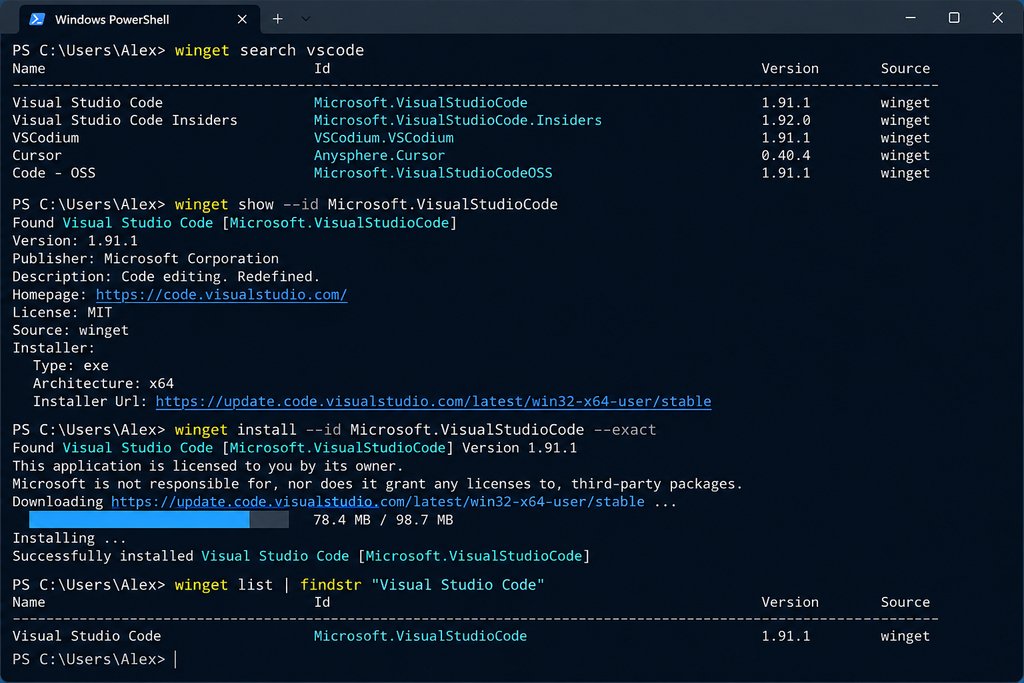
1. Search for an application
Before installing something, search for it:
winget search vscodeWinGet searches its configured package sources and returns matching applications. The search can match package names, IDs, descriptions, monikers, and tags.
For example:
winget search vscodemay return several packages. Look at the Id column before installing one.
Search by exact ID
winget search --id Microsoft.VisualStudioCodeSearch by application name
winget search --name "Visual Studio Code"Require an exact match
winget search --id Microsoft.VisualStudioCode --exactThe --exact option prevents WinGet from treating the search string as a general substring.
Search a specific source
winget search "Visual Studio Code" --source wingetWinGet normally has sources such as winget, msstore, and winget-font.
2. See application details with show
Once you have an application ID, inspect it:
winget show --id Microsoft.VisualStudioCodeThis displays information about the package and the installer WinGet has selected.
This is useful before installing an application because you can check the publisher, version, installer information, source, and other package metadata.
For example:
winget show --id Git.GitThe basic workflow is:
search → show → install3. Install an application
The basic installation command is:
winget install <package>For example:
winget install Microsoft.VisualStudioCodeFor reliable scripting, use the package ID and an exact match:
winget install --id Microsoft.VisualStudioCode --exactWinGet uses the query to identify the application. If multiple applications match, it can ask you to narrow the selection. Using --id and --exact avoids much of that ambiguity.
Install a specific version
winget install --id Microsoft.VisualStudioCode --version 1.100.0Replace the version with one actually available for that package.
You can find available versions with:
winget search --id Microsoft.VisualStudioCode --exact --versionsInstall from a specific source
winget install --id Microsoft.VisualStudioCode --exact --source wingetThis tells WinGet which package source to use.
Install silently
For applications whose installers support the required behavior:
winget install --id Microsoft.VisualStudioCode --exact --silent--silent suppresses installer UI. The exact behavior still depends on the installer.
Install several applications
You can provide multiple package IDs:
winget install Microsoft.VisualStudioCode Microsoft.PowerShell Git.GitWinGet processes the packages sequentially.
This is useful when setting up a new PC.
4. Install applications without remembering their IDs
You can also use a search query directly:
winget install vscodeHowever, this can produce ambiguous results.
For scripts and repeatable setups, prefer:
winget install --id Microsoft.VisualStudioCode --exactThe ID is less likely to accidentally select a different package with a similar name.
5. List installed applications
To see applications WinGet can identify as installed:
winget listYou can search the installed package list:
winget list vscodeOr use an exact ID:
winget list --id Microsoft.VisualStudioCodeThis is useful for finding the package ID and installed version before upgrading or uninstalling an application.
6. Update one application
Use:
winget upgrade --id Microsoft.VisualStudioCode --exactupgrade installs a newer available version of the specified package. The command can also be used without an application argument to see which installed packages have available updates.
You can also use the update alias:
winget update --id Microsoft.VisualStudioCode --exact7. Find all available application updates
Run:
winget upgradeThis displays applications for which WinGet can identify an available upgrade.
This is useful as a preview before updating everything.
8. Upgrade everything
To upgrade all eligible installed applications:
winget upgrade --allWinGet checks installed packages for available updates and attempts to upgrade them.
A useful variation is:
winget upgrade --all --silentWhether an application can actually be upgraded silently depends on its installer.
Some installed applications do not expose enough version information for WinGet to determine whether they need an update. You can include such packages with:
winget upgrade --all --include-unknownWinGet also respects package pins unless you explicitly request pinned packages to be included.
9. Uninstall an application
Use:
winget uninstall --id Microsoft.VisualStudioCode --exactThe uninstall command removes the specified application using its registered uninstaller.
It also has these aliases:
winget remove <package>
winget rm <package>
For example:
winget uninstall --id Git.Git --exactYou can restrict the operation to a source:
winget uninstall --id Git.Git --exact --source wingetThis can avoid unnecessary Microsoft Store source agreement prompts in some uninstall scenarios.
10. Uninstall all versions
If multiple versions of a package are installed, you can request all versions:
winget uninstall --id <PACKAGE_ID> --all-versionsThis is different from simply uninstalling the currently selected version.
11. Upgrade while removing the previous version
Some applications install a new version beside the old version.
You can tell WinGet to uninstall the previous version during an upgrade:
winget upgrade --id <PACKAGE_ID> --uninstall-previousThe result depends on how the application’s installer handles versions.
12. Manage package sources
WinGet gets package information from configured sources.
List them:
winget source listThe default sources include:
msstore
winget
winget-font
Microsoft documents the source command as the interface for adding, editing, listing, updating, removing, resetting, and exporting WinGet sources.
Update sources
winget source updateThis refreshes the configured source data.
Reset sources
winget source resetUse this when you need to restore the default source configuration.
Be careful with custom sources. A package source controls where WinGet gets package information and installers, so only use sources you trust.
13. Export your installed applications
You can create a package list from the current machine:
winget export -o packages.jsonThis produces a file containing package information that WinGet can use later.
For example, after setting up a development PC, you could export the package list:
winget export -o C:Backuppackages.jsonThe file can then be stored with your configuration files or copied to another machine.
14. Restore applications with import
On another Windows machine, use:
winget import -i packages.jsonWinGet reads the exported package list and attempts to install the applications described in it.
This gives you a simple way to reproduce a collection of applications without manually running dozens of installation commands.
Microsoft recommends export and import for saving and restoring package lists. For more complete machine configuration, Microsoft recommends WinGet Configuration files through winget configure.
15. Pin an application
Sometimes you do not want a particular application to be upgraded automatically.
WinGet supports package pins.
Add a pin:
winget pin add --id <PACKAGE_ID> --exactList pins:
winget pin listRemove a pin:
winget pin remove --id <PACKAGE_ID> --exactReset pins:
winget pin resetA pin can prevent the package from being upgraded by normal upgrade operations. WinGet also supports version-specific and blocking pins.
For example:
winget pin add --id SomePublisher.SomeApp --exactThis is useful when a newer application version is incompatible with software or scripts that depend on the current version.
16. Download an installer without installing it
WinGet can download an application’s installer:
winget download --id Microsoft.VisualStudioCode --exactThis is different from:
winget installinstall downloads and runs the installation process. download retrieves the installer without performing the installation.
This can be useful when you want to inspect or archive an installer before deploying it.
17. Generate an installer hash
WinGet provides a hash command for generating the SHA-256 hash of an installer.
The general form is:
winget hash <installer-file>For example:
winget hash C:Installersapplication.exeThe resulting hash can be compared with a known-good hash to verify that the installer file has not changed.
This command is particularly relevant when working with package manifests or checking installer files before deployment.
18. Validate a package manifest
WinGet package manifests describe applications and their installers.
You can validate a manifest with:
winget validate <manifest-path>For example:
winget validate .manifest.yamlThis is primarily useful when working with WinGet manifests rather than ordinary day-to-day application installation.
19. Repair an application
Some WinGet versions support:
winget repair <PACKAGE_ID>For example:
winget repair --id Microsoft.PowerToys --exactThe repair operation depends on whether the application’s installer provides a repair mechanism.
It is not equivalent to reinstalling every application file manually; WinGet invokes the package’s supported repair behavior.
20. Configure a Windows machine with configure
For more advanced setups, WinGet supports configuration files.
A configuration can describe a desired development environment, including applications and system configuration.
For example:
winget configure .configuration.dsc.yamlYou can inspect a configuration before applying it:
winget configure show -f .configuration.dsc.yamlValidate it:
winget configure validate -f .configuration.dsc.yamlTest whether the current system matches it:
winget configure test -f .configuration.dsc.yamlMicrosoft describes configure as a way to establish a desired Windows development environment state. Configuration files can include packages and other system settings.
Do not blindly execute configuration files downloaded from the internet. Review the file and verify the resources it references before applying it. Microsoft specifically recommends checking the trustworthiness of configuration files.
21. Check WinGet settings
Run:
winget settingsThis opens the WinGet settings file.
WinGet settings can control client behavior and certain features.
For troubleshooting experimental functionality, you can also inspect:
winget featuresThis shows the status of available experimental features.
22. Get detailed WinGet information
For information about the WinGet installation and environment:
winget --infoFor command-specific help:
winget install --helpor:
winget upgrade --helpThis is often more useful than memorizing every option because WinGet’s command set and options can change between versions.
23. Use common options with other commands
Several options appear across multiple WinGet commands.
--id
Restricts the operation to an application’s package ID:
winget install --id Git.Git--exact
Requires an exact match:
winget install --id Git.Git --exact--source
Restricts the operation to a particular package source:
winget install --id Git.Git --source winget--version
Selects a particular version:
winget install --id Git.Git --version <VERSION>--silent
Attempts to run the installer without UI:
winget install --id Git.Git --silent--accept-package-agreements
Automatically accepts package license agreements:
winget install --id Git.Git --accept-package-agreementsFor unattended installations, you may also need:
--accept-source-agreementsThe package agreement and source agreement are separate.
24. Build a simple new-PC setup
Instead of installing applications individually, you can combine several package IDs:
winget install Microsoft.VisualStudioCode Git.Git Microsoft.PowerShellFor a repeatable setup, export the resulting package list:
winget export -o packages.jsonThen, on another machine:
winget import -i packages.jsonFor more complex development environments involving system settings as well as applications, use winget configure.
25. A practical WinGet workflow
For an application you have never installed before:
winget search <name>Then inspect the result:
winget show --id <PACKAGE_ID>Install it:
winget install --id <PACKAGE_ID> --exactLater, check for updates:
winget upgradeUpgrade everything:
winget upgrade --allRemove an application:
winget uninstall --id <PACKAGE_ID> --exactSave your installed package list:
winget export -o packages.jsonRestore that list elsewhere:
winget import -i packages.jsonThis covers most everyday WinGet usage.
WinGet command reference
| Command | Purpose | Example |
|---|---|---|
search | Find packages | winget search vscode |
show | Display package details | winget show --id Microsoft.VisualStudioCode |
install | Install a package | winget install --id Git.Git --exact |
list | List installed packages | winget list |
upgrade | Upgrade packages | winget upgrade --all |
uninstall | Remove a package | winget uninstall --id Git.Git --exact |
source | Manage package sources | winget source list |
export | Export installed packages | winget export -o packages.json |
import | Install packages from an export | winget import -i packages.json |
pin | Prevent selected packages from upgrading | winget pin add --id <ID> |
download | Download an installer | winget download --id <ID> |
hash | Generate an installer SHA-256 hash | winget hash installer.exe |
validate | Validate a manifest | winget validate manifest.yaml |
repair | Repair an application | winget repair --id <ID> |
configure | Apply a desired system configuration | winget configure configuration.dsc.yaml |
settings | Open WinGet settings | winget settings |
features | Show feature status | winget features |
Microsoft’s current command reference contains the complete command list and command-specific documentation.
Related DevStackIO Resources
- PowerShell Commands Beginners Should Know — Run WinGet from PowerShell with confidence
References
- Microsoft Learn — Use WinGet to install and manage applications
- Microsoft Learn — WinGet install command
- Microsoft Learn — WinGet search command
- Microsoft Learn — WinGet upgrade command
- Microsoft Learn — WinGet uninstall command
- Microsoft Learn — WinGet source command
- Microsoft Learn — WinGet pinning
- Microsoft Learn — WinGet configure command
Keep going on DevStackIO
When an install fails on network errors, follow checking whether a website or service is down.
Related Tools
Try these companion tools on DevStackIO Tools:
- unit converter — convert between measurement units for Windows administration.